Context
Section titled “Context”If a problem occurs in your service or a customer disputes an invoice, you have the option to issue a refund.
This action will result in cancelling the current invoice and generating a credit note to meet the requirements of your accounting and the customer’s accounting.
- Only a paid invoice in the ‘Paid’ state can be refunded.
- A refund can only be issued for the entire invoice. If you need to issue a partial refund, you can simply add a line to the balance.
Procedure
Section titled “Procedure”1. Go to the profile of the relevant customer
Section titled “1. Go to the profile of the relevant customer”- Click on “Subscriptions & Invoices” from the left menu.
- Select the customer in question.
- Click on the “Invoice” tab.
- Then select the invoice you want to refund.
2. Open the refund form
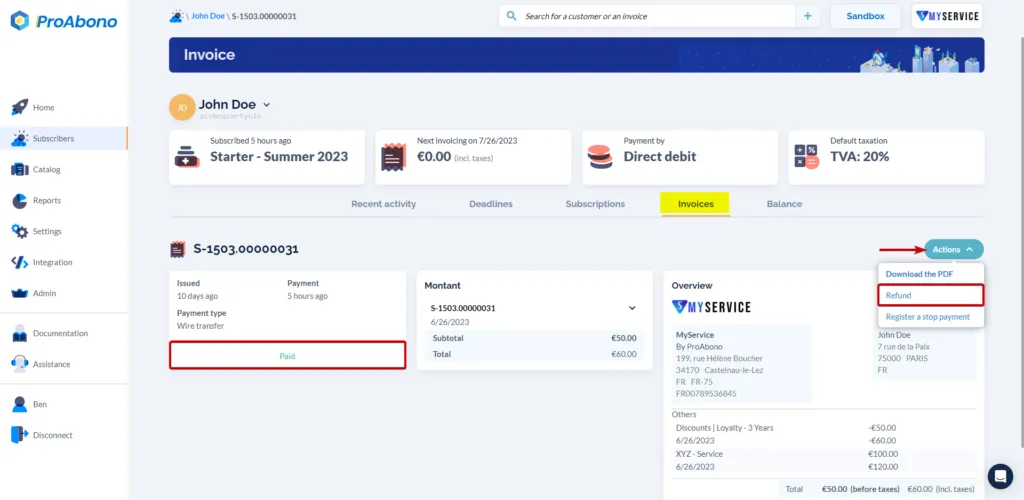
Section titled “2. Open the refund form”Once on the invoice profile:
- Open the “Actions” menu.
- Click on “Refund”.
3. Fill in the additional information
Section titled “3. Fill in the additional information”You must enter a reason to justify this refund.
Choose the desired refund method:
-
Manual refund
- Use this option if you have already issued the refund.
-
Automatic refund
- Attempts to automatically refund the transaction associated with this invoice.
- The success of this operation depends on the payment method and the rules of the payment gateway.
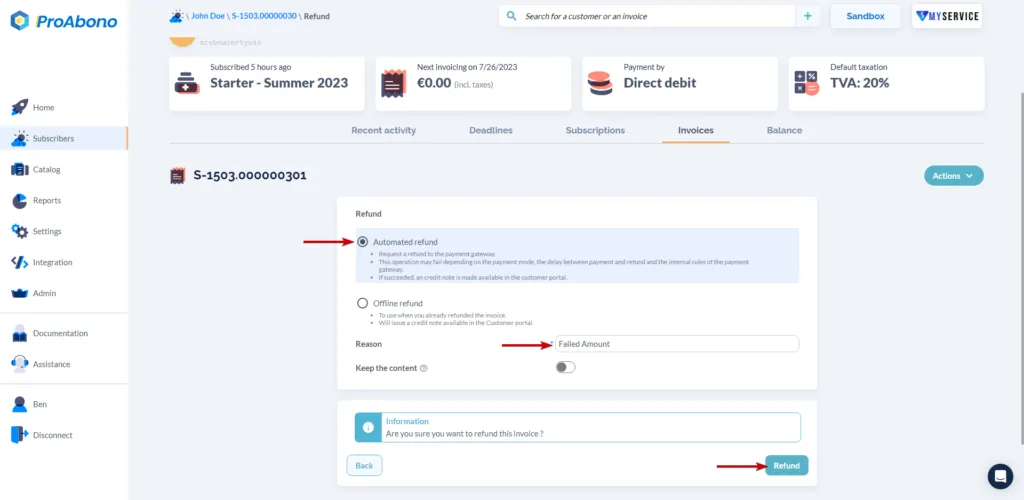
If the “Keep content” option is checked, then the content of the invoice is kept in the balance, allowing the generation of a corrected invoice later.
4. Confirm your refund
Section titled “4. Confirm your refund”Click the “Refund” button to proceed with the refund.
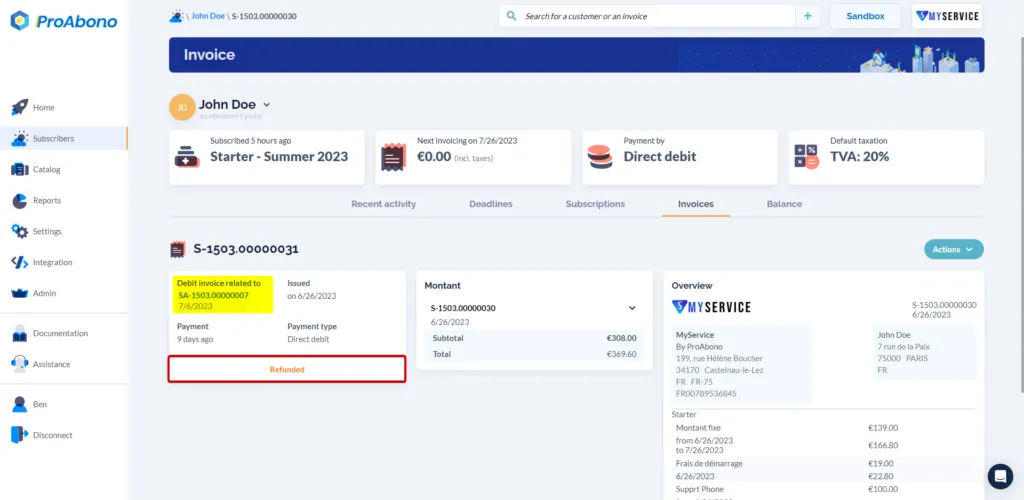
If your request is successful:
- A credit note will be automatically generated (You can easily identify it by the addition of the letter “A” in the numbering nomenclature).
- The original invoice will be marked as “Refunded”.
- The credit note will be displayed to your customer through the customer portal.
Further Steps
Section titled “Further Steps”Here are other methods for correcting an invoice:
invoice, refund, credit-note, payment