Context
Section titled “Context”If you have integrated the customer portal on your website, you may have noticed that by default, a customer has the ability to terminate a subscription on their own.
If you don’t want them to have this capability, you have two solutions:
- By adding a minimum engagement duration to an offer, corresponding to the number of billing periods configured. (The trial period is not taken into account).
- By modifying the display options of the customer portal.
Procedure
Section titled “Procedure”1. Solution 1: Add a minimum commitment duration to an offer
Section titled “1. Solution 1: Add a minimum commitment duration to an offer”1.1. Access the offer catalog
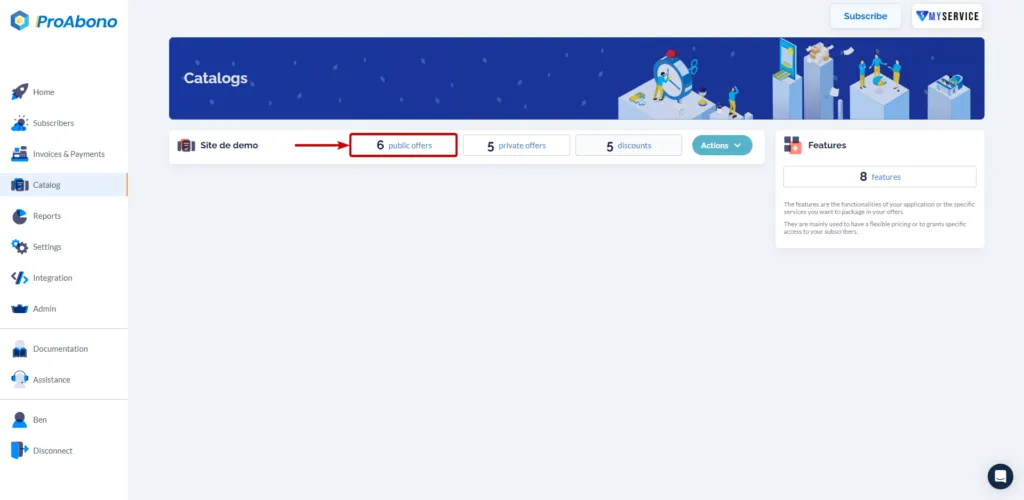
Section titled “1.1. Access the offer catalog”- Click on the “Catalog” button from the left menu.
- Choose one of the categories (e.g., public offers) to access the list of offers in your segment.
1.2. Open the creation form
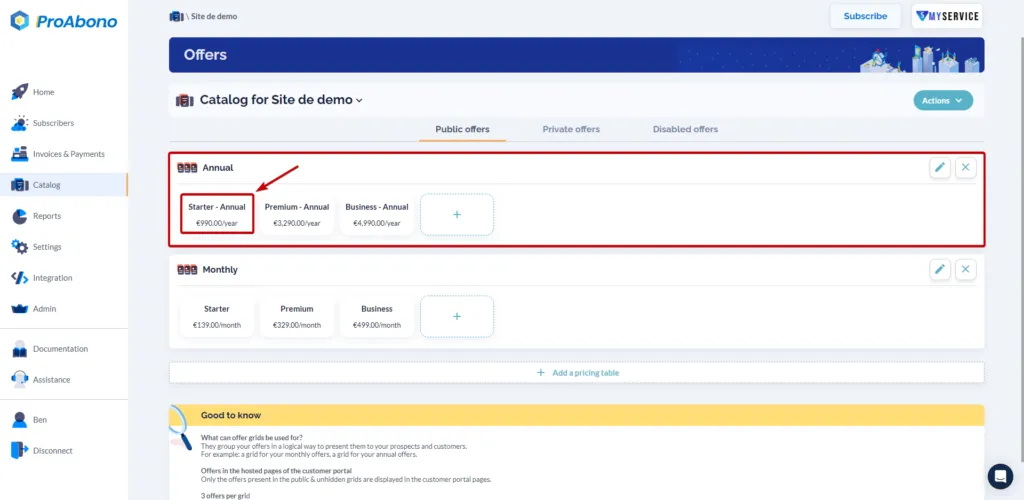
Section titled “1.2. Open the creation form”- Click on the tile corresponding to the offer you want to modify.
- If you don’t have an offer yet, click on the “+” to create a new one
1.3. Add the minimum commitment duration
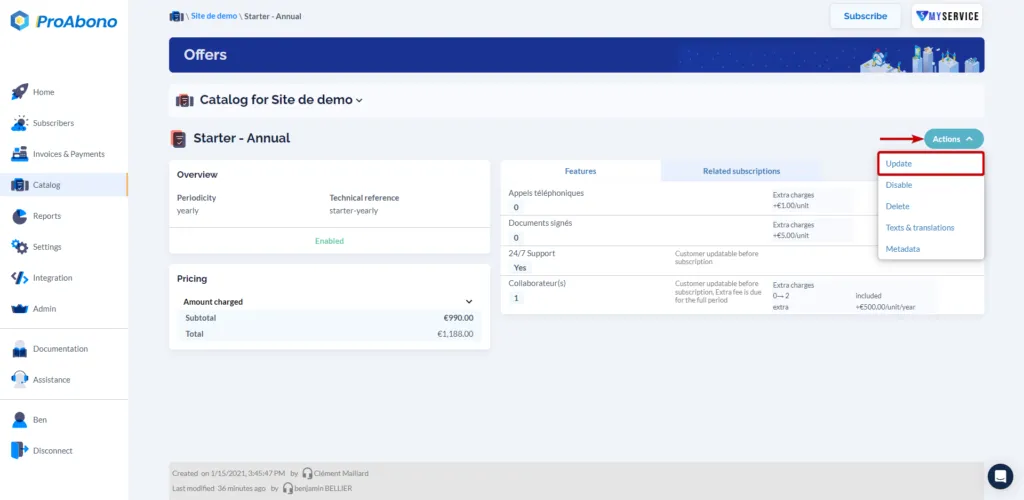
Section titled “1.3. Add the minimum commitment duration”- Click on the “Actions” button of the selected offer
- Click on “Update”
- Go to the “Billing Period” section
- Click on “Minimum engagement” and choose the number of periods during which your subscribers will not be able to modify their subscription autonomously.
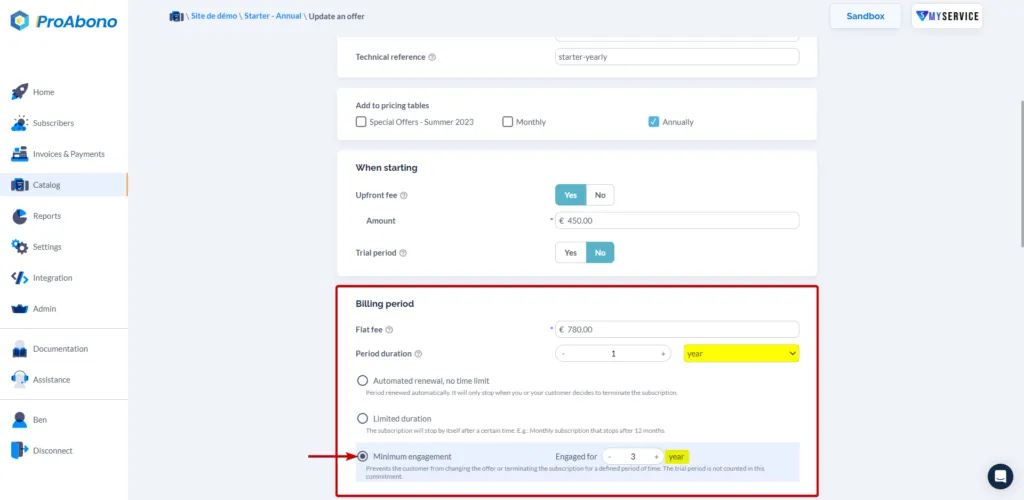
In this example, customers who subscribe to this offer will only be able to terminate their subscription after the first three billing periods have passed.
Attention! Once the commitment duration is over, your customers will be able to terminate their subscriptions again.
1.4. Save the modifications
Section titled “1.4. Save the modifications”Simply click on the “Save” button at the bottom of the page to apply your modifications.
2. Solution 2: Configure the customer portal
Section titled “2. Solution 2: Configure the customer portal”2.1. Access the configuration settings of the “Cancel” button
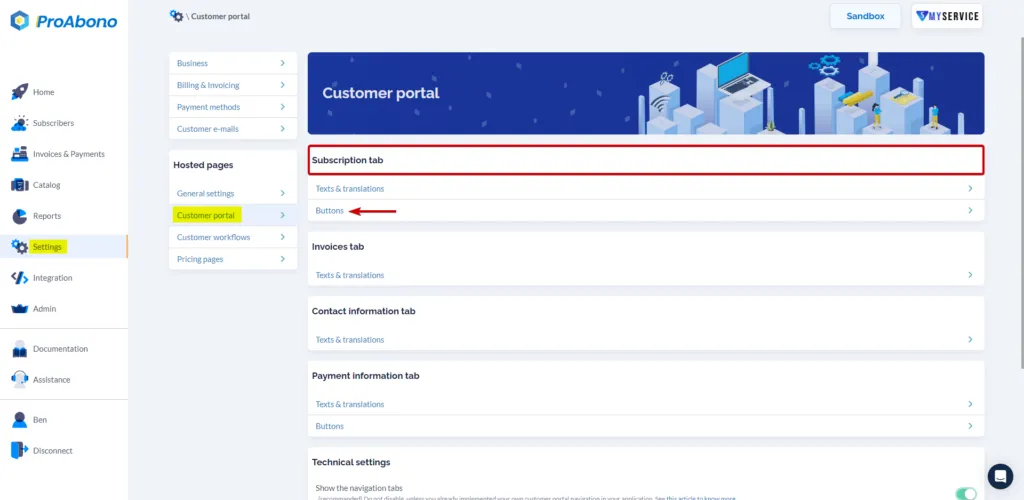
Section titled “2.1. Access the configuration settings of the “Cancel” button”- Click on the “Settings” button from the left menu.
- Then click on “Customer Portal” in the “Hosted Pages” section.
- Next, click on “Buttons” in the “Subscription” tab.
2.2. Choose the desired option
Section titled “2.2. Choose the desired option”Once you have accessed the available buttons in the “Subscription” section of the customer portal,
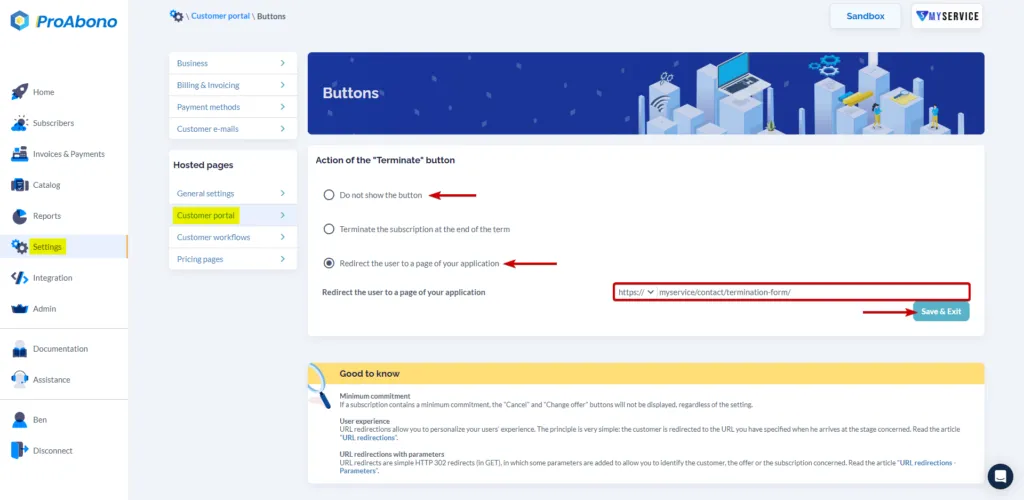
- Click on “Action for the “terminate” button
Instead of triggering the termination process when the “Terminate” button is clicked, you can either:
- Completely hide the display of the button. Your subscribers will no longer have access to this functionality.
Attention! This action modifies the behavior of the interface, and customers will no longer have any means to terminate their subscription themselves.
- Redirect your customers to a specific URL to perform a process that is specific to your business.
2.3. Save the modifications
Section titled “2.3. Save the modifications”Simply click on the “Save” button to apply your modifications.
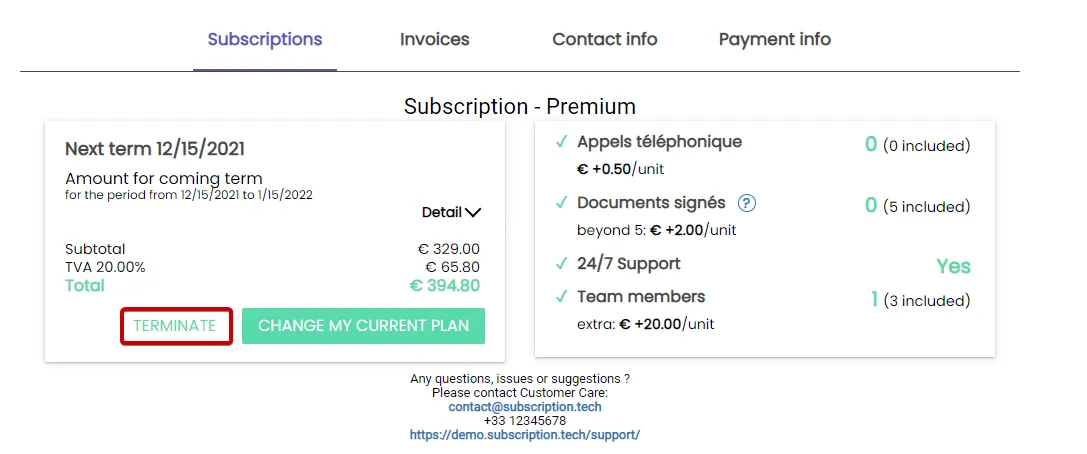
Before hiding the “Terminate” button in the customer portal:
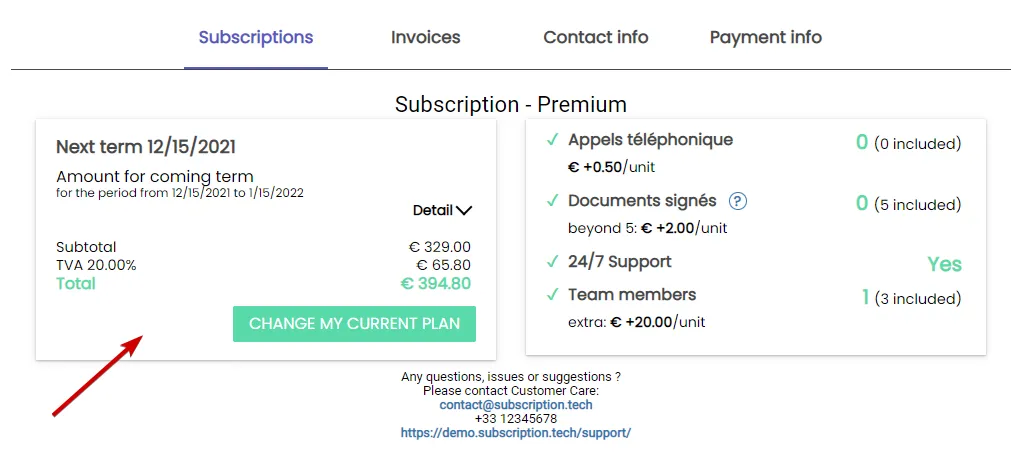
After hiding the “Terminate” button in the customer portal:
 minimum-duration, customer, offers, customer-portal